Enabling inactive Outlook add-ins that keep being unloaded
Issue:
Outlook keeps marking addins into the unloaded behaviour
Solution:
Enabling inactive Outlook add-ins that keep being unloaded
If Outlook keeps deactivating an add-in, first of all try to uninstall & reinstall the given add-in. If it doesn’t solve the issue and the add-in is still being displayed as inactive, please follow these steps to activate the add-in:
1. exit Outlook and uninstall the given Outlook add-in from your Windows Control Panel (see Add/Remove Programs or Uninstall Programs, depending on your Windows version);
2. open your Windows registry (run regedit.exe) and locate the following registry entries:
HKEY_CURRENT_USER\Software\Microsoft\Office\15.0\Outlook\Resiliency (replace 15.0 with your actual Outlook version: 15.0 means Outlook 2013, 14.0 means Outlook 2010, 13.0 means Outlook 2007, etc) – remove the REG_BINARY keys found in DisabledItems and CrashingAddinList: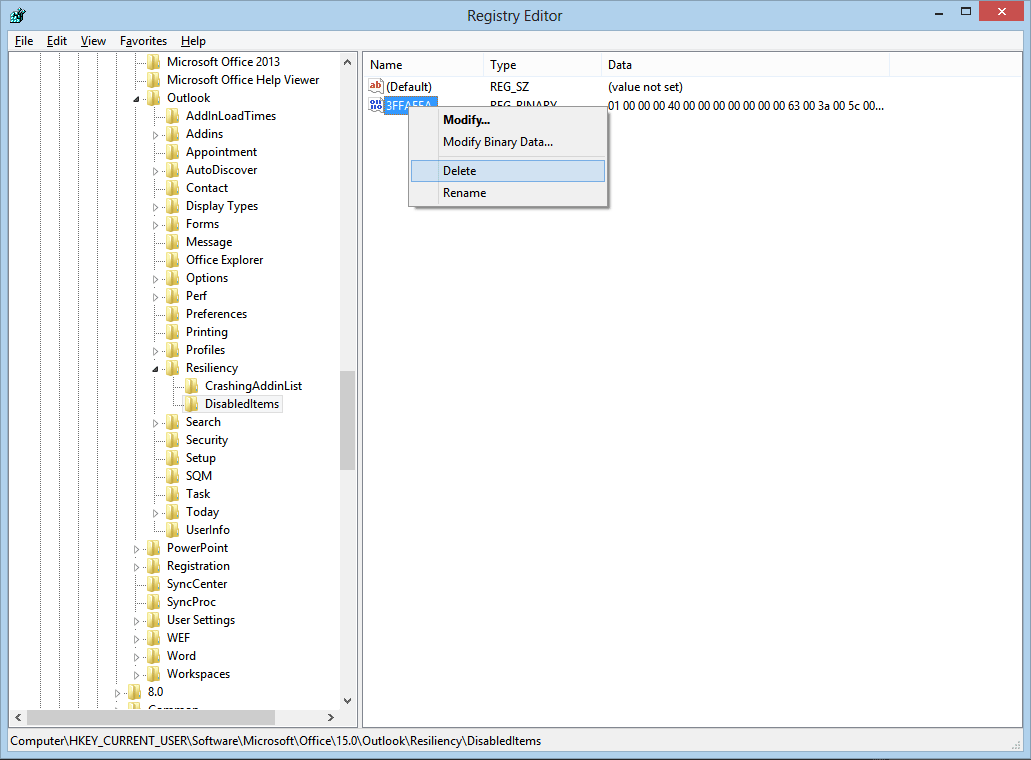
HKEY_CURRENT_USER\Software\Microsoft\Office\Outlook\Addins – remove the keys that refer to your troubled Outlook add-in. If you want to fix the OneNote Outlook add-in, remove the entry named OneNote.OutlookAddin.
3. reinstall the related Outlook add-in and restart Outlook: it should be loading fine now, without being listed as an inactive add-in.